Suno Studio 2.0 Tutorial: I Produced a Full Song (2026)
Suno Studio 2.0 adds MIDI, an AI chat bar, and real plugins. I took one raw AI generation and produced it into a finished master. Here is every step.
 By Moe Lueker
The song at the end of this post started as a single prompt and a rough one-take generation. By the time I was done with it in Suno Studio 2.0, it had a layered piano part I prompted into existence, two MIDI tracks I shaped by hand, a bass line I transposed down four octaves myself, regenerated backing vocals, and a compressor, EQ, and reverb chain on the lead vocal.
I am not a producer. I dabble. That is exactly why this update matters.
Suno gave me early access to Studio 2.0 and sponsored the video above, and I took it on the condition that I could say what I actually thought. So you will find my honest verdict near the bottom, including the part where I tell you it will not replace Logic Pro.
Before any of this, the song has to exist. I wrote the lyrics and the style prompt with the free Suno AI Lyric Generator GPT I built, which has been used over 50,000 times. I asked it for a country folk song about realizing adulthood got too complicated and wanting the simple fun you had as a kid. It returned a formatted style prompt, an alternative prompt, and lyrics in the structure Suno expects.
I set a female vocalist, weirdness to 40, style influence to 70, and generated. Suno gives you two versions every time. I picked the first one and opened it in Studio.
Stems Are the Foundation, Not the Feature#
Opening a song in Studio 2.0 splits it into separate stems: synthesizer, percussion, guitar, bass, vocals, drums. The separation is cleaner than it used to be, but the reason it matters is not the split itself. It is that solo and mute become a decision-making tool.
Want to know whether a section actually needs drums? Mute the drum track for four bars while it plays. You will hear the answer immediately. I used that constantly, and it is the fastest way to develop an ear for arrangement without knowing any theory.
The Chat Bar Is the Real Update#
Studio 2.0 puts a prompt box directly over your timeline. Select a track, describe what you want, and it edits that track.
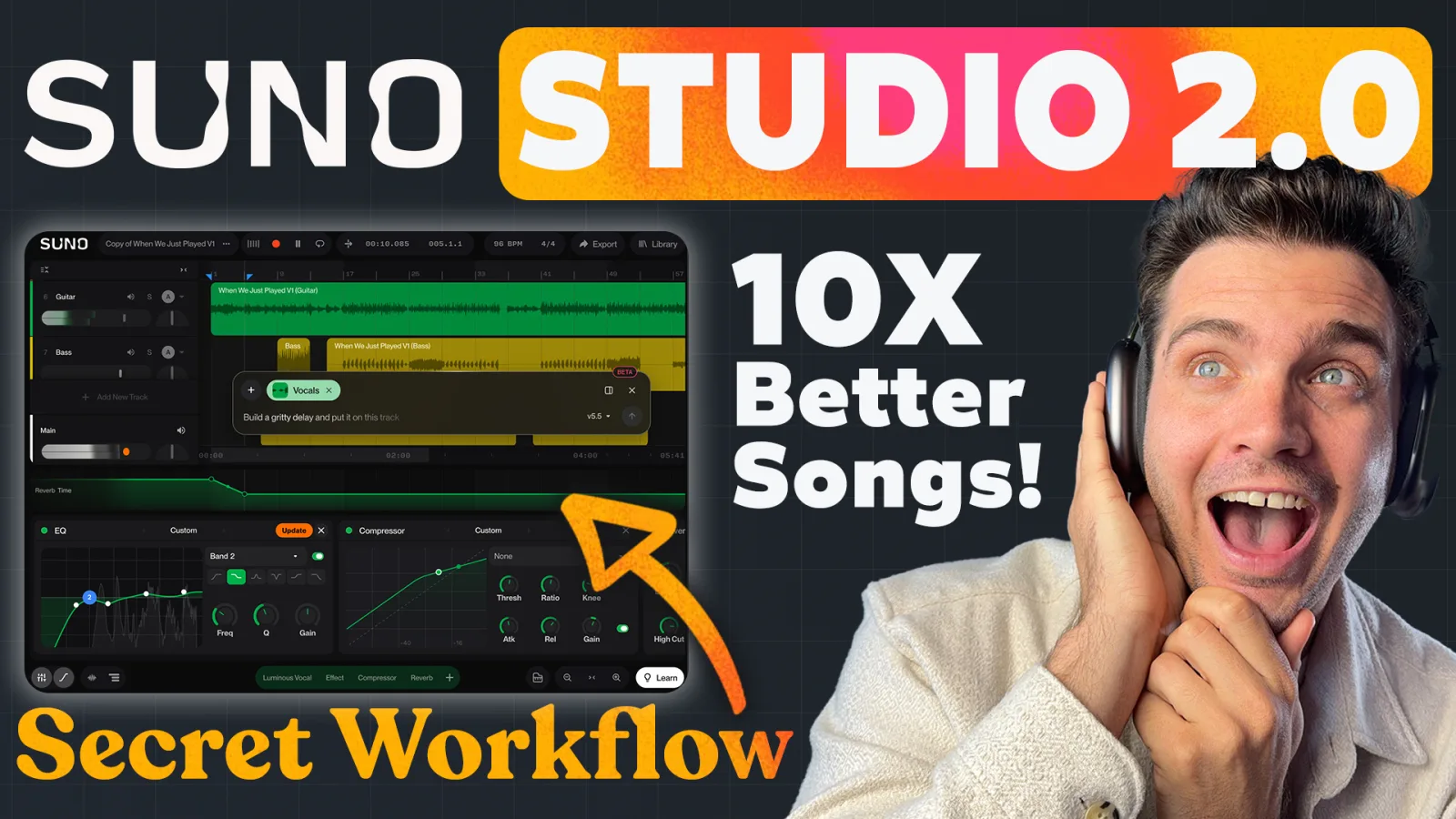
That is the actual workspace. Stems stacked on a timeline, the chat bar floating over them with a prompt aimed at the vocals, a reverb automation lane underneath, and EQ and compressor panels along the bottom. Everything below happens in that one screen.
I clicked the guitar stem and typed "make this guitar sound a bit richer and fuller using effects." It built an effects chain on its own, adding EQ and then reverb. Not a preset. An actual chain assembled for that specific track.
The detail people miss: selection controls scope. With a track selected, it edits that track. With nothing selected, it adds something new. Get that backwards and you will wonder why it keeps generating instruments you did not ask for.
You can also point it at a single effect instead of the whole chain. Right-click an EQ, hit "revise with AI," and ask it to make the vocals richer. It nudges that one plugin rather than rebuilding everything, which is much easier to control.
How I Made the AI Vocals Sound Less Robotic#
This is the part everyone asks about, and the workflow is simple enough to copy exactly.
Duplicate the vocal track first. Mute the original, rename one "vocals original" and the other "vocals edited." Now you have a real A/B and you can always hear whether you improved it or just changed it.
On the edited copy, in this order:
- Compressor. Add gain, then bring the threshold and ratio down. This evens out the performance and is most of the "fuller" you are hearing.
- Equalizer. Cut the low end, bring up the mids.
- Reverb. A small amount for space and richness.
Three plugins. That is the whole thing. If you do not trust your ear yet, every effect ships with presets, and "revise with AI" will adjust any single one for you.
There is also automation, which lets an effect change as the song plays. I automated reverb decay so the intro starts drenched and dries out the moment the vocal enters, drawn as a curve on its own lane. It is the most advanced thing in the video and also the easiest to delete if you overdo it.
If you want the prompting side of this rather than the mixing side, my full Suno guide covers writing hit songs with AI, including lyric structures, style prompts, and when to reach for Suno 4.5 versus 5.5.
Adding Instruments That Were Never There#
My generated track had no piano. So I added an audio track, selected the region where the chorus starts, and prompted: "Add a piano chord melody that harmonizes with the lead vocals."
That phrasing does the work. Telling it to harmonize with the lead vocals makes it listen to what is already there instead of inventing something in a different key.
It gave me two options, as it always does. Neither was quite right, so I sent a follow-up prompt and the revision had exactly what I wanted: a few chords as a riff up front, then a melodic run underneath.
It was also too loud and it dropped in cold. Both fixable. I brought the volume down and used the fade handle so it swells in instead of appearing. Then I copied that region to the other choruses rather than regenerating each one, which keeps the song coherent and costs nothing.
MIDI Changes What Suno Is#
This was the single most requested feature under my last Suno Studio video, and it is the reason I think this release is genuinely different.
Add a new track, choose MIDI, and you get real notes on a grid. You can have the AI write a part, or play one in yourself if you have a MIDI keyboard connected.
The trick worth stealing is the round trip. Select an audio track, hit "get MIDI," and it downloads a .mid file. Create a new MIDI track and drag that file straight back in. What comes back is far more detailed than what the AI writes from a prompt, and now every note is yours to move.
Once it is MIDI you can quantize it, change key and scale, or loop it. I quantized a part to 1/8 and it snapped into place perfectly, and that was the problem. It sounded too perfect. The tiny timing imperfections were what made it feel played rather than programmed, so I put it back.
Being MIDI also means synths. Each track gets a wavetable you can open up, with envelope, filter, and oscillator controls. I split my piano into two MIDI tracks, one for the high melody and one for the underlying chords, then treated them differently.
For the bass I duplicated a MIDI track and asked the AI to turn it into a bass line. It handed me a plain up-and-down pattern that was not what I wanted, so I copied the part I liked and transposed it down four octaves by hand. Then I changed the filter cutoff and switched off the second oscillator to get a plucky sound.
That exchange is the honest picture of this tool. The AI gets you 80% of the way in seconds, and the last 20% is you, which is the part that makes it sound like yours.
I go deeper on the MIDI side, including the DAW handoff, in my guide to getting MIDI in and out of Suno.
Yes, You Can Sing On It#
Add an audio track under the vocals, click the A button to set it as the recording target, pick your input, and hit the red dot. There is a pre-roll so you are not scrambling.
I hummed over the chorus. It was bad, and I left it in the video because pretending otherwise would be silly. But the mechanism works, and once your voice is on a track it gets the same compressor, EQ, and reverb as everything else.
I also tried prompting "add a second vocal track that harmonizes." The result drifted out of sync with the lead and I deleted it. Regenerating the backing vocals wholesale worked much better than trying to add a harmony line on top.
Exporting, and Where the Song Goes Next#
Export gives you the full song or every individual track. The full song lands in your Suno library, where the three-dot menu offers MP3 or WAV. The multi-track option downloads everything as separate WAV files, and you also keep the .mid files you pulled earlier.
That combination is what makes this more than a toy. You can start a song here and finish it anywhere.
My Honest Verdict, and the Price#
Suno Studio 2.0 will not replace Logic Pro or Ableton. Those have a plugin ecosystem and a depth this does not touch, and I said so on camera even though Suno paid for the video.
What it is: the best starting point I have seen for someone who wants to understand how music actually gets made. You can prompt your way to something decent, then open the hood as far as you want. With MIDI export, you can also treat it as a fast idea machine and do finishing work in a real DAW.
Studio is on the Premier plan only, which is $24 a month billed annually or $30 month to month. Regular Suno still has a free tier, so you can write and generate songs without paying anything, but the Studio editor needs Premier.
If your interest in this is commercial rather than creative, that is a different skill set from mixing. My Suno Master Class Bundle covers how to actually make money with AI music, and it bundles the lyric GPT and the usage guide with the money-making framework.
The song I built is at 28:05 in the video. Judge it yourself, then go make one that is better than mine.
Watch the full walkthrough on YouTube: https://youtu.be/nCuGFDefLg0
Some links above are affiliate links, so I may earn a commission at no extra cost to you. I only recommend tools I actually use.
Moe shares tool walkthroughs and lessons from real projects. Mechanical engineer, then venture capital, now building AI tools for creators and small businesses. More about Moe
Get new videos in your inbox
Weekly AI workflows. No fluff.
No spam. Unsubscribe anytime.