How to Download an Email Thread From Gmail
Download a Gmail thread as a PDF, EML file, or structured XML with its attachments. Pick the format that fits what you need next.
 By Moe Lueker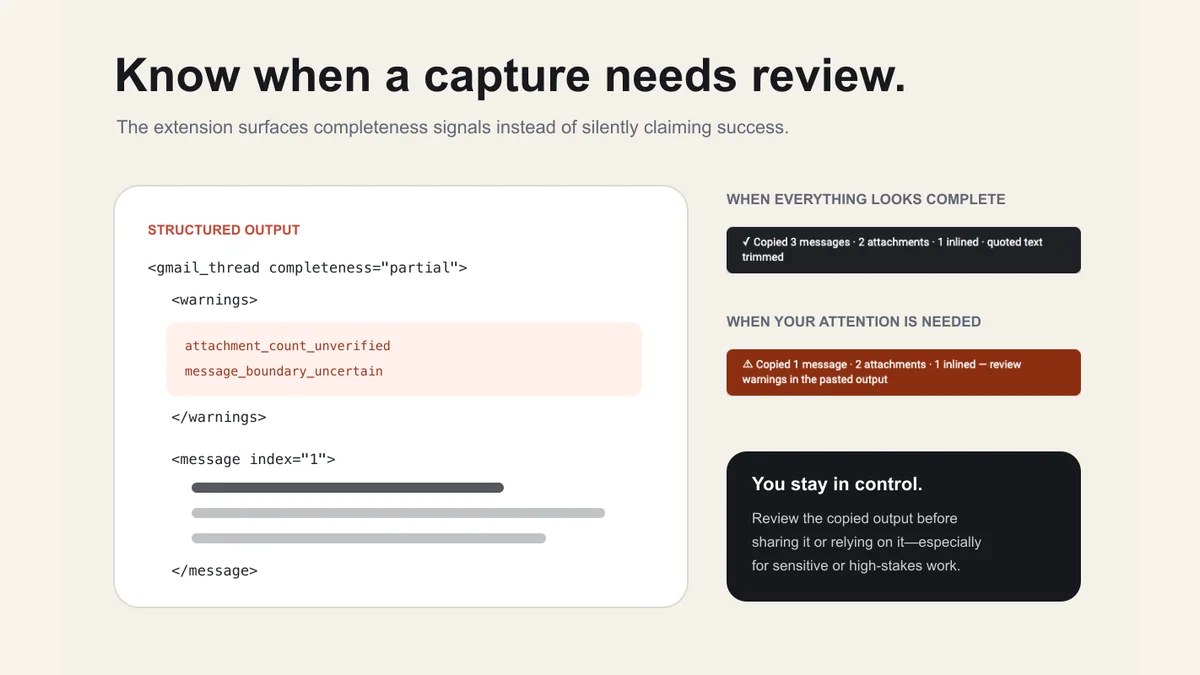
You can download an email thread from Gmail in three useful formats. Save the whole conversation as a PDF for a readable record, download individual messages as EML files for a mail client, or use Copy Gmail Thread for AI to save structured thread.xml plus verified attachments. The right choice depends on what you plan to do with the thread next.
Choose the Format Before You Download#
Each Gmail export method preserves a different part of the conversation.
| Format | Best for | What it preserves | Main limitation |
|---|---|---|---|
| A readable record | Visible conversation, basic layout, printable pages | Harder to reuse as clean text | |
| EML | Opening one message in a mail client | Original message headers and email format | Gmail downloads one message at a time |
| Structured XML | AI context, handoffs, and review | Message boundaries, attribution, Markdown bodies, attachment context, warnings | It is not a legal archive or system of record |
If you need to copy rather than save the conversation, start with how to copy an entire email thread in Gmail. The rest of this guide focuses on files you can keep.
Method 1: Save the Whole Gmail Thread as a PDF#
PDF is the simplest choice when another person needs to read the conversation in a familiar format.
- Open the Gmail conversation on a computer.
- At the top right of the conversation, choose Print all.
- In the system print dialog, choose Save as PDF.
- Pick the destination and save the file.
Google confirms that conversations with several emails can be printed together in its Gmail printing guide.
A PDF is easy to share and keeps a page-like layout. It is not ideal for AI analysis. Page headers, line breaks, and repeated quoted replies can add noise, while attachments remain separate from the file.
Method 2: Download a Message as an EML File#
EML is the better format when you want to open a message in a desktop email client or preserve its native email structure.
- Open the message inside the Gmail conversation.
- Open the message's More menu.
- Choose Download message.
- Open the downloaded EML file with a desktop mail client.
Google documents this flow in Download and send emails as attachments. The same guide also explains Gmail's Forward as attachment option when the goal is to send messages rather than store them locally.
The catch is scope. An EML file represents one message, not a clean, combined conversation. A long thread can leave you managing several files with repeated quoted text.
Method 3: Save Structured Thread Text and Attachments#
Use structured XML when you want the conversation to remain readable to both a person and an AI tool.
- Install Copy Gmail Thread for AI.
- Open the Gmail conversation.
- Choose Copy + save files.
- Find the new thread-specific folder inside Chrome's configured download directory.
The folder path follows this pattern:
gmail-threads/<sanitized-subject>-<thread-key>/
The folder receives thread.xml plus any verified Gmail attachments that Chrome started downloading. The XML file is the same structured document placed on your clipboard, so the files do not become an unlabeled pile after you copy something else.
The extension reports download started, not saved, because Chrome completes downloads asynchronously. If Chrome changes a duplicate filename, the output waits for the resolved name when it can verify it.
What Happens to Attachments#
The extension records attachment names, file types, sizes, and the message that carried each file when Gmail exposes enough information to verify that relationship.
Text-like attachments can be inlined up to set safety limits. PDFs, Office documents, images, archives, audio, and video are listed but not parsed. There is no OCR. A file declared larger than 25 MB is not started.
Raw Gmail attachment URLs never appear in the copied document. The extension validates the Gmail origin, active account, thread ID, attachment endpoint, and attachment identifier before requesting a download.
Which Download Method Should You Use?#
Choose based on the next action, not the format that sounds most complete.
- Use PDF when a person needs to read or print the conversation.
- Use EML when a mail client needs the original message format.
- Use structured XML when you want to summarize, hand off, review, or paste the conversation into an AI prompt.
- Use Gmail's Forward as attachment when the recipient should receive the original messages inside another email.
If you plan to ask ChatGPT or Claude for help, the structured version saves cleanup work. You can also follow the focused guide to using ChatGPT with one complete Gmail thread.
Keep the Saved Copy Private#
A local download is still a copy of private email. Store it where the right people have access, delete it when you no longer need it, and do not paste regulated or confidential information into another service without permission.
Copy Gmail Thread for AI has no analytics, publisher server, remote code, or persistent message storage. That protects the capture step. It does not control what happens after you move the file or paste the text.
For a broader inbox workflow with explicit read and write permissions, see my Zapier MCP Gmail guide. For inbox cleanup before threads become unwieldy, the Fyxer AI review covers a different category of email tool.
Moe shares tool walkthroughs and lessons from real projects. Mechanical engineer, then venture capital, now building AI tools for creators and small businesses. More about Moe