invideo Editor Review: I Let AI Agents Edit My YouTube Intro
invideo Editor review: its AI agents cut 8 minutes of my messy takes into a 2:40 YouTube intro. The prompts, the mistakes and what it cost in credits.
 By Moe Lueker
The first 2 minutes and 40 seconds of my latest video were not edited by me or by my editor. I filmed about 8 minutes of messy takes, handed them to the AI agents in invideo Editor, and told them what I wanted in plain English.
They picked the takes, cut the restarts, placed my B-roll, generated new B-roll, built the sound design and the music, added effects and color graded it. Then I opened the video with that edit and asked viewers to tell me if anything looked off.
Why I wanted an agent for the first cut#
Editing is the part of YouTube I'm happy to pay for and wait on. My editor needs a couple of days for a video like this, and I dread doing it myself.
The worst part is the first pass. You watch every take, cut every restart and line up the B-roll before any of the creative work starts. If an agent can do that pass, I either finish faster or my editor starts from a clean cut and spends his time on the parts that need taste.
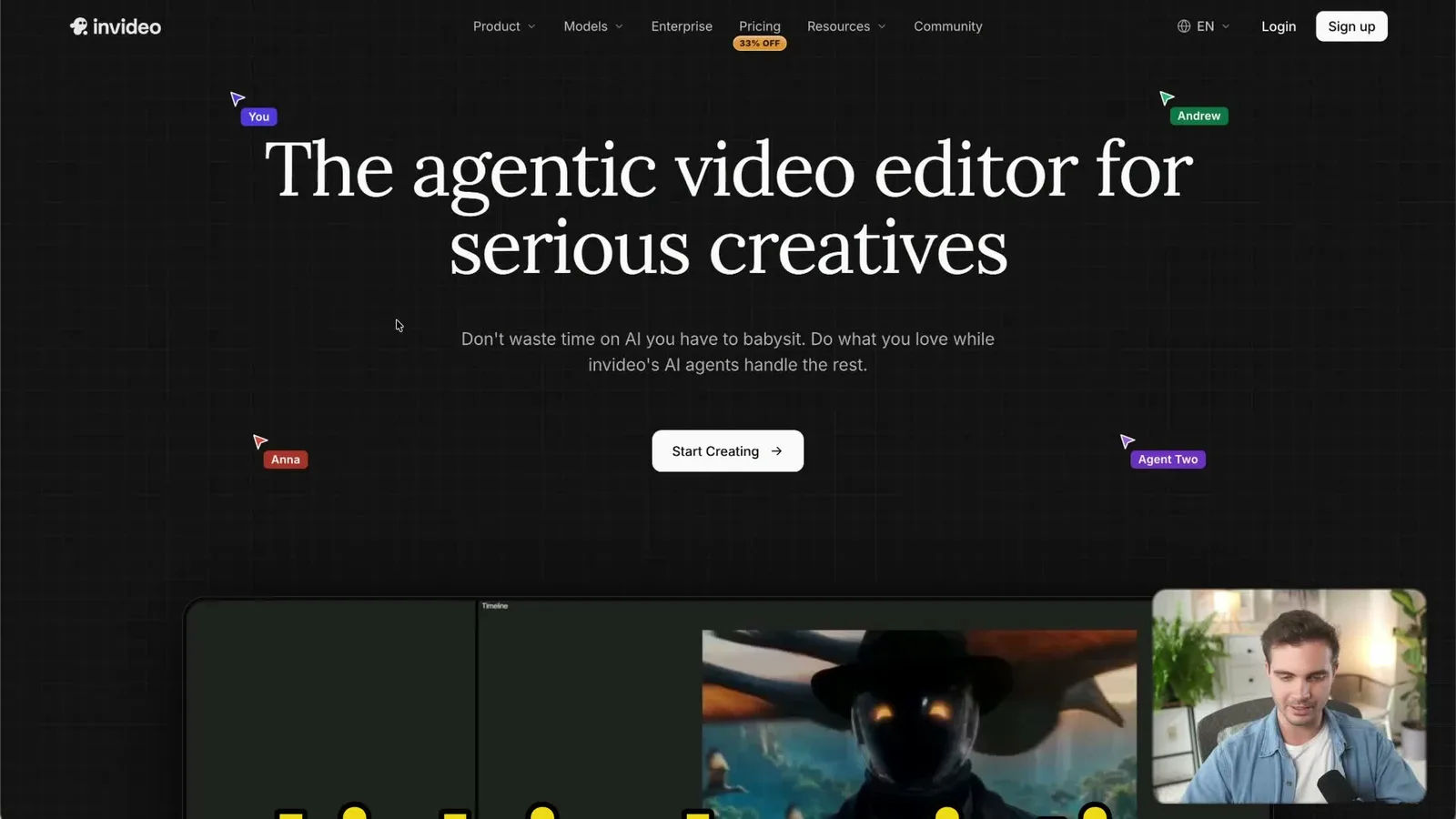
invideo Editor is built for exactly that. It's a timeline editor that runs in the browser and feels like Premiere Pro or DaVinci Resolve, with AI agents layered on top. You give the agents footage and direction, they do the work on the timeline, and you can keep editing by hand while they run. invideo sponsored the video and gave me early access, which is how I got to push it this hard. Everything below is what happened on my own footage.
Prompt 1: clean up the audio#
I dragged the raw take onto the timeline, selected it and asked the agent to make my voice sound full and clear, like a studio recording: remove background noise and room echo, add gentle EQ, light compression and a limiter. I also told it not to cut anything yet and to tell me what it changed.
It added a parametric equalizer, a compressor and a limiter to the clip. They show up as normal effects in the inspector, so I could toggle each one and adjust it myself. The voice sounded fuller right away.
Prompt 2: the first cut, from 8 minutes to 2:40#
This is the step that normally eats my time. I selected the clip and dictated one instruction: this is the full take with a lot of retakes, make it much tighter, and remove the retakes and the pauses between sentences so it flows.
The agent transcribed the timeline, went through it in several passes and brought it down to about 2 minutes 40 seconds. It also wrote a short report of what it did and what it wasn't sure about.
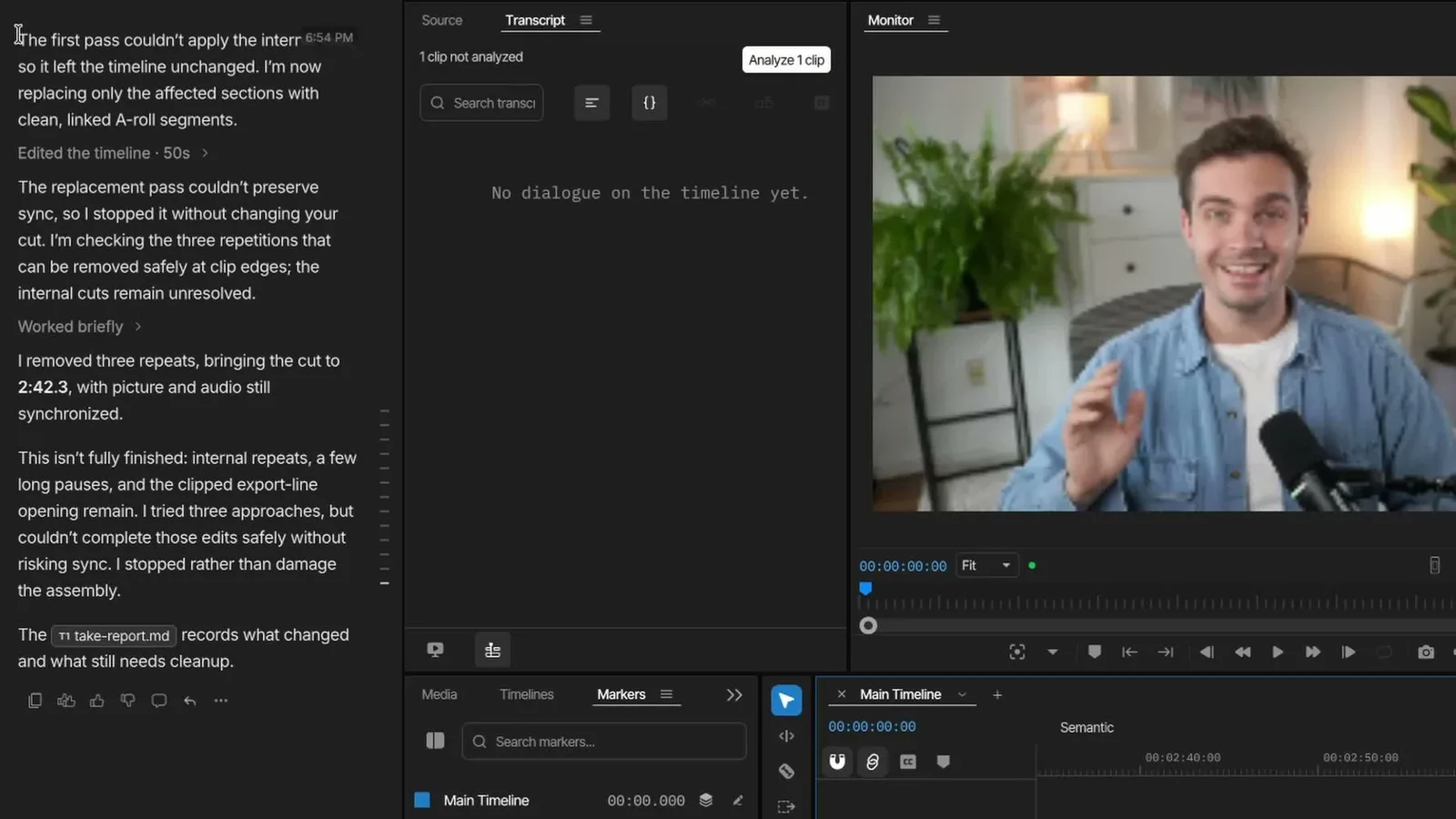
The first minute was close to flawless. Across the whole thing it left three repeated lines. I fixed those with the blade tool in a few minutes, which is the honest summary of this tool: the agent does the heavy pass, and you still review it.
Prompt 3: my own B-roll, placed on the right lines#
I dropped my animations and screen recordings on a second video lane in no particular order and told the agent to cut them into pieces and place each piece where I talk about that thing in the A-roll.
It matched them to the lines. When I say "every cut, every B-roll shot, every sound effect," the right clips are on screen at the right moment.
A second agent for AI B-roll#
While the first agent worked, I created a second one and asked for two generated clips: a realistic skateboarder bombing down a hill in San Francisco, and two robots high-fiving in a small card right where I hold out my hand.
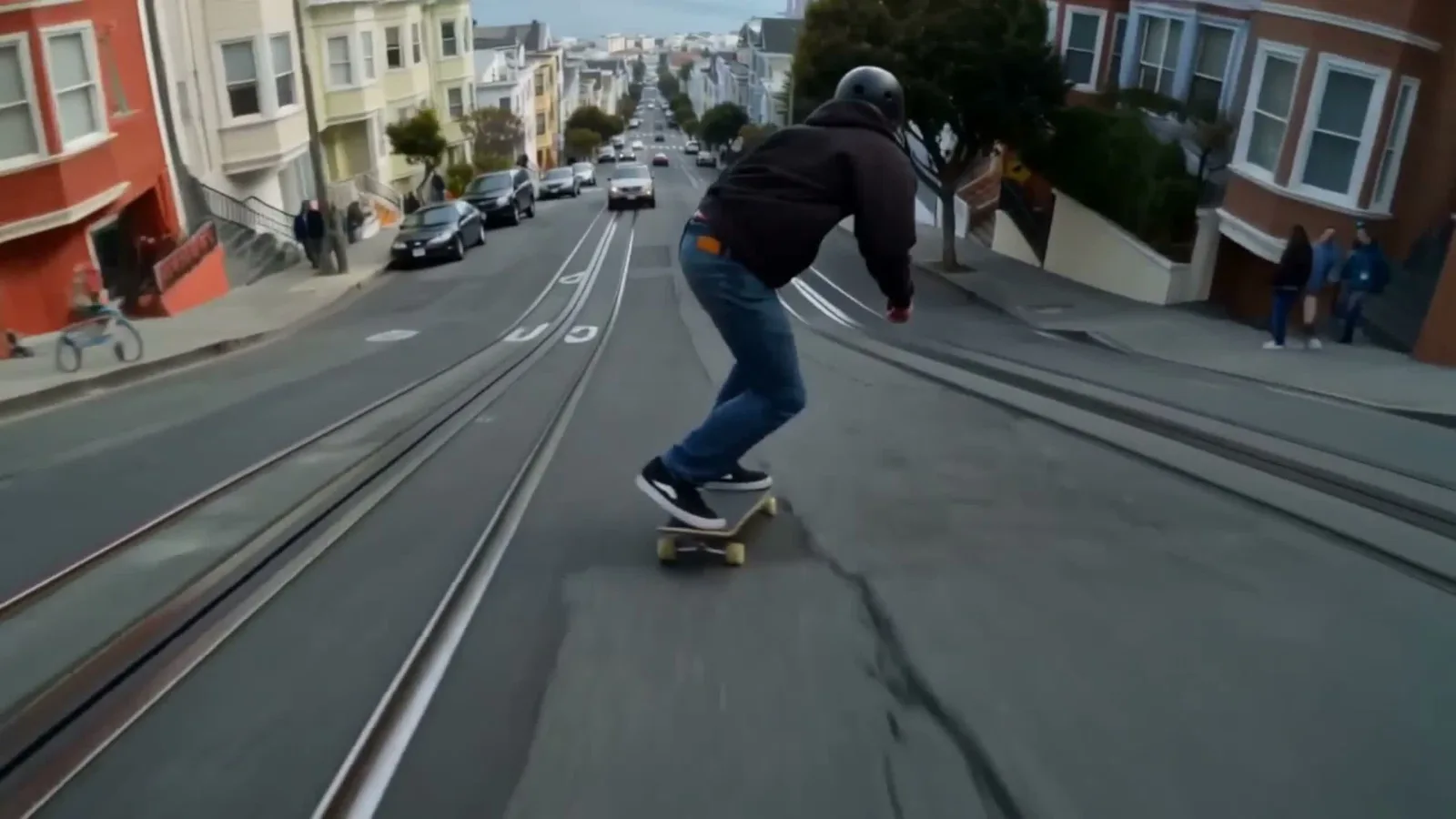
Before generating anything, the agent told me what it would cost. Seedance 2.0 was 144 credits per second, so a 10-second clip would have been about 1,400 credits. It suggested Kling 3.0 at 45 credits per second, and that's what made the skateboarder. If you want to know what those models can do on their own, I have a full guide on how to use Seedance 2.5 and a walkthrough where I made a cinematic commercial with Kling 3.0.
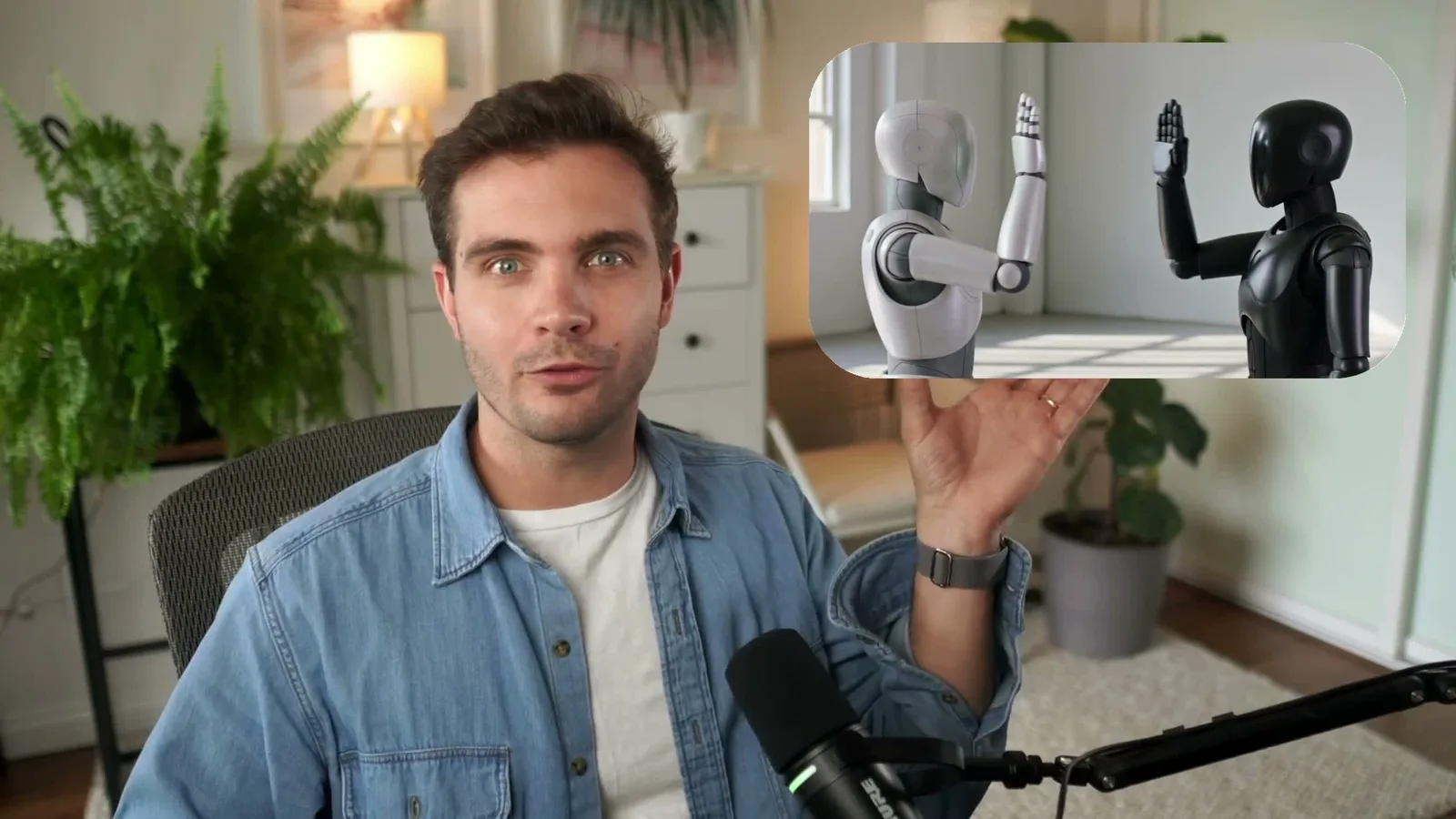
The robots landed a little small on the first try. I asked for a bigger card with a drop shadow, and it fixed that without touching the rest of the edit. Both agents were working on the same timeline at the same time and didn't get in each other's way.
Sound design, music, effects and color#
For sound, I asked the agent to act as a sound engineer for a high-end commercial, watch the whole video and design the effects itself, with no music yet. It made 27 separate sound effects with ElevenLabs and placed them on the timeline.
Then I started a separate agent for the background music and another for visual effects and color: a fisheye effect, a shape flicker transition, a base grade and four looks. The fisheye came back as a reusable effect with its own controls, so I could dial it in on one clip or a whole shot.
The biggest thing I learned: give the agent one job per prompt. Sound effects first, then music, then polish worked much better than asking for everything at once.
The finished timeline#
The final intro is two video layers and five audio tracks: my voice, two music tracks and two tracks of sound effects. You can export a finished MP4 or hand it off as a Premiere Pro or DaVinci Resolve project.
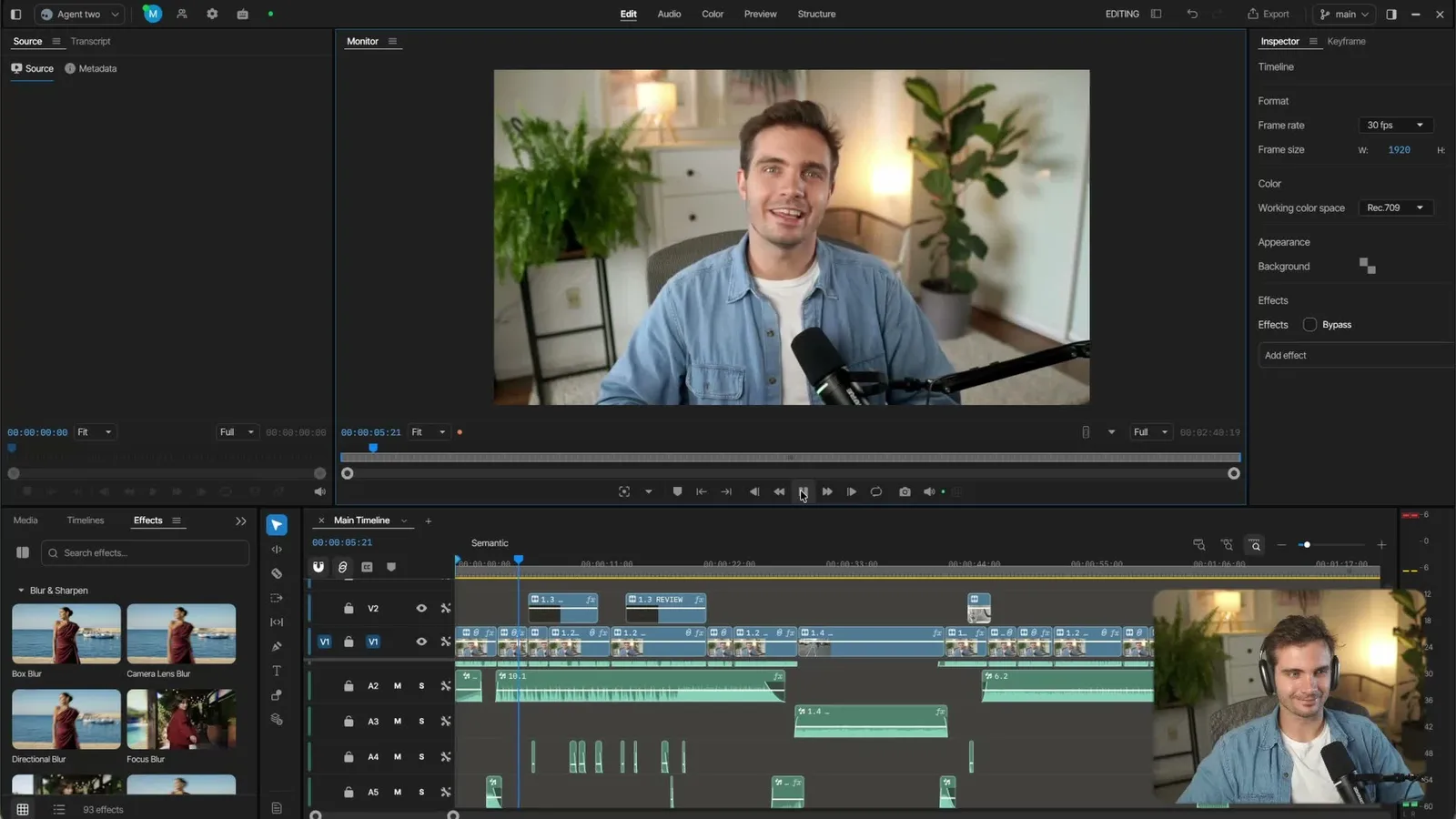
You can watch the result at the very start of the video, and the full playback inside the editor is at 17:36 in the video. My animated B-roll came from my own workflow, not from invideo. I wrote about that in the Claude skill that makes videos.
What it cost in credits#
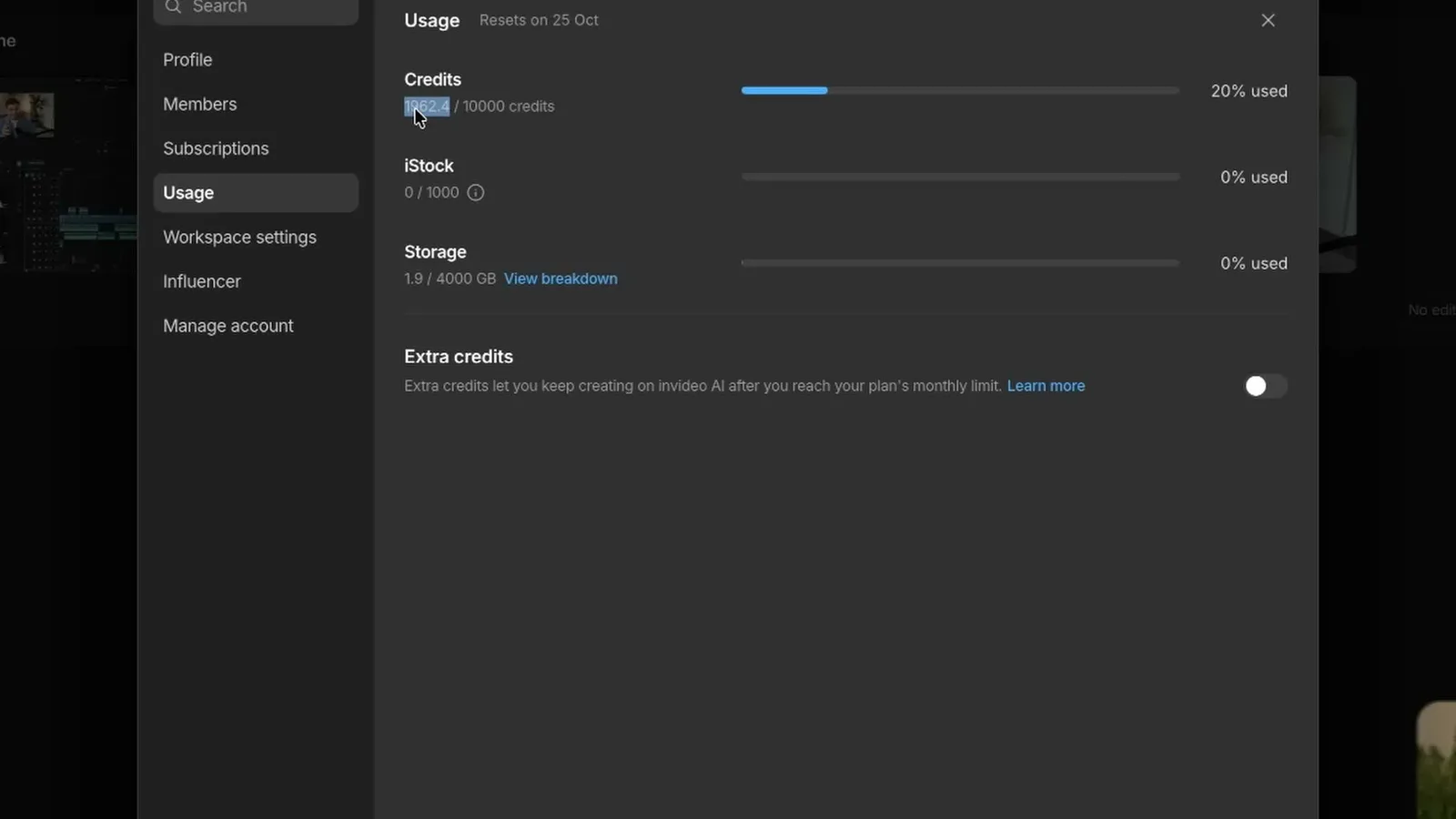
The whole intro used about 2,000 credits. About half of that was the AI-generated video, so the edit itself (audio cleanup, the cut, B-roll placement, 27 sound effects, music, effects and color) was about 1,000 credits. I also ran several steps in Ultra mode, which burns more than Pro or Light.
Here is what invideo's pricing page listed when I checked on October 12, 2026. Prices are per seat.
| Plan | Credits per month | Billed monthly | Billed annually |
|---|---|---|---|
| Starter | 400 | $20 | $10 a month |
| Plus | 2,000 | $60 | $30 a month |
| Max | 5,000 | $150 | $75 a month |
At those rates an intro like mine costs about a month of Plus if you generate video clips, and about half of that if you only edit. Starter should be enough to try the cut and the audio cleanup on a short clip, and it won't cover a full edit like this one. Unused credits don't roll over, so pick the plan by how much you edit each month.
If you already compare video models by price, my Kling 3.0 vs Sora 2 vs Veo 3.1 breakdown covers which one is worth the credits for which kind of shot.
Who should use it#
Use it if the first cut is what keeps your videos from going out. A solo creator can go from raw takes to a reviewable edit in one sitting, and a creator with an editor can hand over a clean base cut plus a Premiere or DaVinci project.
Skip the generated B-roll if you're watching credits. It was half my bill.
And don't publish without watching the cut. Three repeats in 8 minutes of footage is a good result, and I only caught them because I watched the whole thing.
One more thing from the video: I dictated every prompt with Rambleproof, the voice-to-text app I built for Mac. Long, specific prompts are what make these agents work, and talking is faster than typing them.
The agents didn't replace my editor. They replaced the part of editing that neither of us wants to do.
Watch the full walkthrough on YouTube: AI Agents Edited This Video's Intro. Can You Tell?
Some links above are affiliate links, so I may earn a commission at no extra cost to you. I only recommend tools I actually use.
Moe shares tool walkthroughs and lessons from real projects. Mechanical engineer, then venture capital, now building AI tools for creators and small businesses. More about Moe
Get new videos in your inbox
Weekly AI workflows. No fluff.
No spam. Unsubscribe anytime.